Home screen and themes
Learning how to make your iPhone home screen aesthetic sounds like a weekend project. Most of the pretty home screens you see online took someone an afternoon of fiddling and a paid theme app. You can get the same look in about half an hour with the tools already on your phone, if you work in the right order: wallpaper first, icons second, widgets last.
Start with the wallpaper, because every other choice has to match it. Then open the Customize panel and pick one icon style, Dark, Clear or Tinted, and stick to it across the whole screen. Add one or two widgets that show information you actually check, hide the pages you never open, and only then make custom icons for the few apps you see every day.
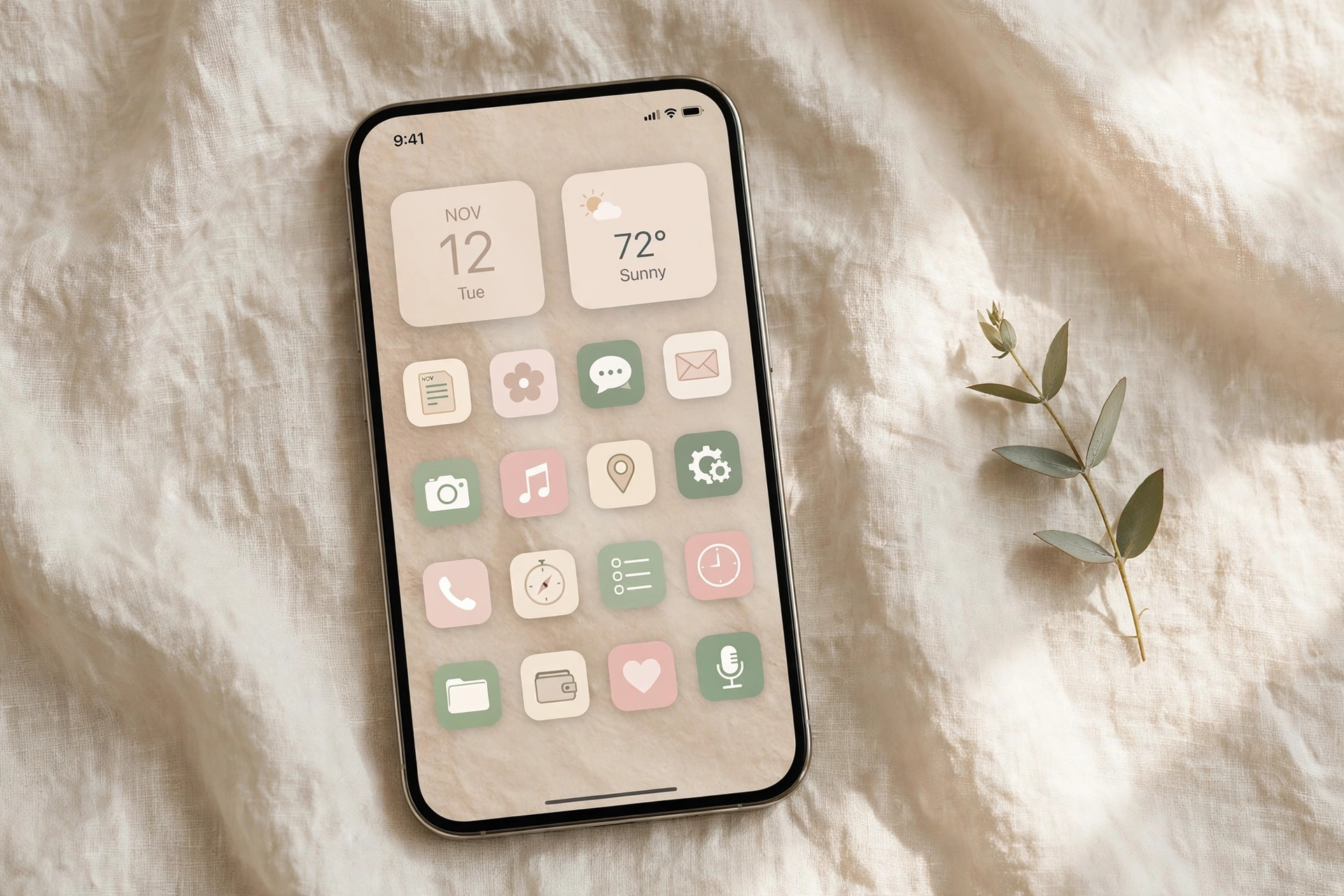
Your wallpaper sets the palette for everything else, so choose it before you tint a single icon. Open Settings, Wallpaper, tap Add New Wallpaper, and pick from your photos, Photo Shuffle, Emoji, Color, or one of Apple's featured sets.
After you tap Add, the phone asks how to use it. Set as Wallpaper Pair puts the same image on both screens. Customize Home Screen gives the Home Screen its own wallpaper instead, and that is the choice to take here: a softer color, or the same photo with a Blur effect that keeps the image you love while making icons easy to read.
Touch and hold the Home Screen background until the icons jiggle, tap Edit, then tap Customize. This one panel restyles every icon and widget at once. Pick Light or Dark, make the icons translucent with Clear, or give them all one color with Tinted, using the sliders or the eyedropper to pull a color from your wallpaper. The same panel makes icons larger, and in large size the app names disappear.
Pick one style and one tint color, then stop. Mixing styles across pages is how a setup starts looking accidental. If you do not see Clear or Tinted, your iOS is older than the version that added them, so check Settings, General, Software Update.
A pretty home screen you have to fight is not pretty. It is a chore with nice colors.
Widgets are small live panels from your apps. Touch and hold the background until the icons jiggle, tap Edit, then tap Add Widget. Calendar, Weather, Reminders, Photos and Batteries are the ones people actually glance at. Pick a size, tap Add Widget, and drag it where you want it. To resize one later, touch and hold the widget and choose a size. Keep it to one or two widgets per page, and try a Smart Stack too: one slot that rotates through several widgets during the day. If you never glance at a widget, it is decoration taking up room your thumb could use.
The Customize panel recolors every icon at once, but it cannot give one app your own picture. For that, use the Shortcuts app. Open Shortcuts, tap the +, tap Add Action, search for Open App, and choose the app. Then tap the shortcut name, tap Add to Home Screen, tap the icon in the preview, and pick your image with Take Photo, Choose Photo or Choose File. Type the name you want under the icon and tap Add.
Then hide the original so you do not see it twice. Touch and hold the real app icon, tap Remove App, then Remove from Home Screen. The app stays installed in your App Library, and only your custom icon shows. Two honest trade-offs: tapping the icon runs a shortcut that opens the app, and your shortcut icon will not show the red notification badge. Do this for the apps on your first page, not all forty. If you want a matched set of icon images instead of hunting for them one by one, that is what our Home Screen Theme Kit is for.
The videos make it look like you need a theme app, or a configuration profile downloaded from a website, to get this look. You do not. Every step above uses iOS itself and the Shortcuts app that came with your phone. A paid icon set is fine if you like the art, but no app can do anything here that the built-in tools cannot, and a profile from a random site is a trust decision, not a theme.
An aesthetic home screen is mostly an empty one. Group the apps you keep into folders by dragging one app onto another, then tap the folder name to rename it. For apps you use rarely, touch and hold the icon, tap Remove App, then Remove from Home Screen. They stay installed and searchable.
Whole pages can go too. Touch and hold the background until the icons jiggle, then tap the row of page dots just above the Dock. Uncheck any page you want to hide and tap Done. The apps on it stay installed, and you can bring the page back the same way. Keep at least one page checked, so put your daily apps on page one and let everything else live in a folder or on a hidden page.
Finish by making the Lock Screen part of the same look. Touch and hold the Lock Screen, tap the +, and browse the gallery for a wallpaper that pairs with your Home Screen. From the same place you can change the clock style, add small widgets, and swap the Flashlight and Camera controls. Tap the Focus button on a wallpaper to link a Focus to it, so a calm setup can appear automatically when Work focus turns on.
Then stop. Live with the result for a week before you change anything. If it ever goes badly wrong, open Settings, General, Transfer or Reset iPhone, Reset, Reset Home Screen Layout, and tap Reset Home Screen. Apple's built-in apps return to their original layout, your folders are removed, and downloaded apps are arranged alphabetically. Nothing is erased.
Choose the wallpaper first and give the Home Screen its own softer version. Pick one icon style in Edit, Customize and use it everywhere. Add one or two widgets you actually glance at, hide the pages you never open, and make custom Shortcuts icons only for the apps on your first page. Match the Lock Screen, then leave it alone for a week.
How we check this: every step above was traced to Apple's own pages, including "Customize apps and widgets on the iPhone Home Screen", "Change your iPhone wallpaper", "Make your iPhone your own" in the iPhone User Guide, and Apple's guide to moving apps and resetting the Home Screen layout. If Apple does not publish it, we do not print it.
The fastest way to begin is a fresh wallpaper. Grab our free live wallpapers, pick one you love, and build the rest of the setup around it. It takes two minutes, and a good wallpaper does half the work for you.
Get the free live wallpapers iPhone Visuals