Battery
You charged to 100 percent before breakfast, and by lunch you are hunting for a cable. The usual advice is worse: close every app, turn everything off, buy a new phone. Here is the calmer way: look at what your phone actually did today, fix the one or two things really eating power, and leave the rest alone.
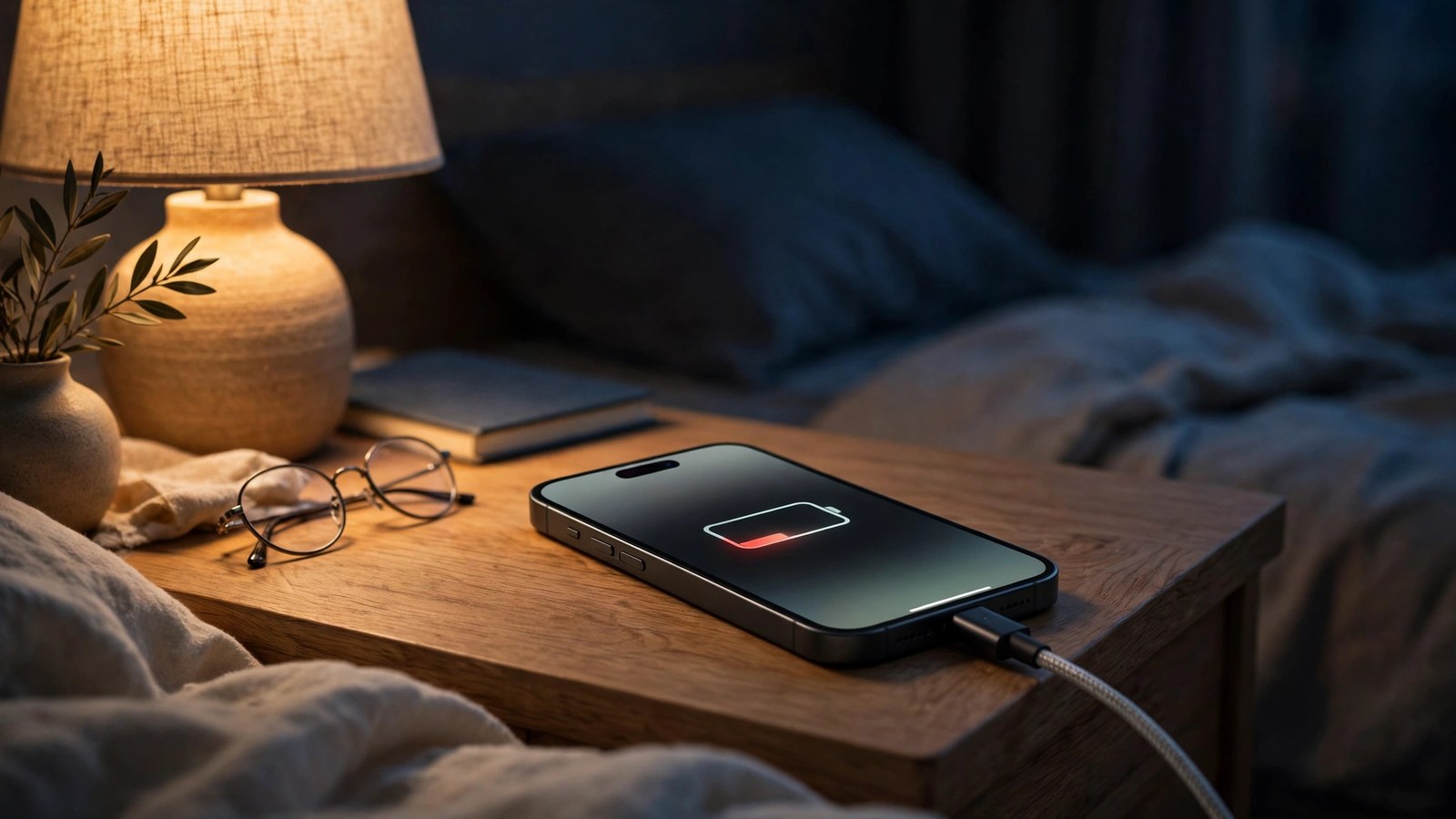
Settings, Battery is where every honest fix starts. In iOS 26 you will see a Daily Usage chart comparing today with your last seven days, plus the three apps that used the most battery today. Tap an app to see whether its usage was mostly on screen or in the background. That detail changes the fix completely. An app you used for two hours of video is not a problem. An app you barely opened that still burned power in the background is. Start with evidence, not panic.
After an iOS update, background tasks keep finishing for a while, and Apple says battery life and heat can look worse during that period before returning to normal. If the drain started the day you updated, give it a few days and check the Battery screen again. You may see an Insight saying an update is still finishing in the background. If the drain was already there before the update, keep going, because something else is going on.
Settings, Battery, Power Mode, Adaptive Power: on. On supported models, Adaptive Power predicts when you will need extra battery on a heavy day, then makes small adjustments, like lowering brightness slightly and limiting background activity. It can even turn on Low Power Mode by itself at 20 percent. Apple lists it for iOS 26 on iPhone 15 Pro and iPhone 15 Pro Max, the iPhone 16 models, the iPhone 17 models, iPhone Air, and newer models. If your Power Mode page does not show it, your model does not have it. We covered it in our iOS 26 hidden features guide too, but it is the closest thing to a set and forget battery fix.
Settings, Battery, Power Mode, Low Power Mode: on. Low Power Mode cuts power use by reducing things like mail fetch, Background App Refresh and some visual effects, and your battery icon turns yellow while it is active. It switches itself off once you charge past 80 percent. Use it before a long day out or a travel day, not only when you are already at 5 percent and stressed. Turn it on at 60 percent on a heavy day and you will feel the difference by evening.
Go back to Settings, Battery and tap the worst offender. If most of its usage says Background Activity, switch it off in Settings, General, Background App Refresh while leaving messages and maps untouched. Then check that app's notifications, because a chatty app can wake the screen dozens of times a day. Turn off the noisy ones from the one app costing you the most, and keep the alerts that matter.
High brightness uses a lot of energy, and Apple will flag it if yours sits above the recommended level. Let Settings, Accessibility, Display and Text Size, Auto-Brightness do the adjusting for you. Then set Settings, Display and Brightness, Auto-Lock to 30 seconds or one minute, so a phone left on a table does not sit lit doing nothing. The third one is signal. In a weak signal area your phone works harder to stay connected, and Wi-Fi uses less power than cellular on a good network. Out of coverage for a while? Airplane Mode beats letting the phone hunt for a signal all afternoon.
Battery life is how long one charge lasts. Battery lifespan is how long the battery itself lasts, and charging habits affect the second one. On iPhone 15 models and later, Settings, Battery, Charging lets you pick a charge limit between 80 and 100 percent. Optimized Battery Charging, on by default, delays charging past 80 percent when it predicts the phone will stay plugged in overnight, then finishes just before you usually unplug. It needs time to learn your routine. Apple designs iPhone 15 and later batteries to keep 80 percent of capacity at 1,000 complete charge cycles under ideal conditions, compared with 500 cycles for iPhone 14 models and earlier. That is a design target, not a promise, but it shows why sitting at full charge for hours every night is worth avoiding.
Check Settings, Battery, Battery Health on iPhone 15 and later, or Settings, Battery, Battery Health and Charging on iPhone 14 and earlier. If it says Service next to Battery Health, Apple suggests considering a replacement to restore full performance and capacity. A worn battery holds less charge, so no settings change will give you a new phone day. If capacity is still in the high 80s or above and the drain is recent, work through the fixes above first. If it is low and the phone dies at 20 percent, a battery service will do more than any tip on this page.
Check the Battery screen, wait out a fresh update, turn on Adaptive Power if you have it, and use Low Power Mode before the long day, not after it. Silence the one noisy background app, let Auto-Brightness and a short Auto-Lock do their quiet work, and let Optimized Battery Charging look after the overnight hours. Seven small changes, none drastic, and together usually enough.
Grab our free live wallpapers and pick a new lock screen tonight. It takes two minutes, and a phone you like looking at is a phone you will actually keep charged and cared for.
Get the free live wallpapersMore useful reading: our iOS 26 hidden features guide covers Adaptive Power and the other settings worth turning on after an update.
 iPhone Visuals