Battery and heat
An iPhone overheating after update feels alarming, because the phone was fine yesterday and now the back is warm to the touch. Most of the time it is not broken. It is doing extra work behind the scenes, often while you are charging it or running one app that never settles down. The trick is telling normal post update warmth apart from heat that points to a real problem.
A warm back for a day or two after an update is normal. The phone is finishing setup work in the background, and Apple says to give it a few days. Heat is a problem when it appears during light use, is still there a week later, or comes with a temperature warning. The checks below sort one from the other in about ten minutes.
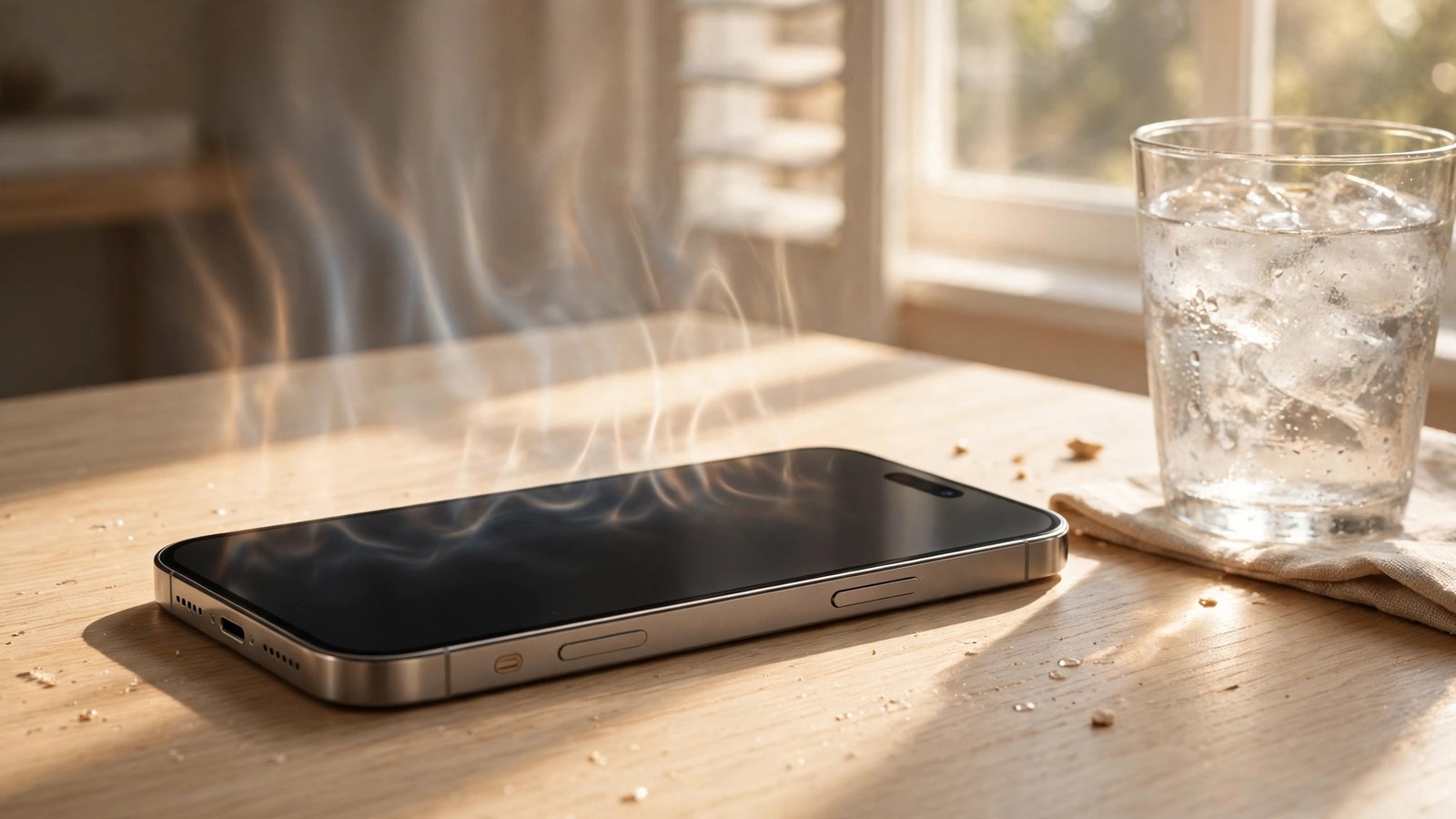
Apple lists activities that normally make a phone feel warmer, including completing a software update, particularly a major release, restoring from a backup, charging wirelessly, streaming video, and using graphics heavy apps or the camera. If no temperature warning appears, Apple says you can keep using the device, and it will cool when the task finishes. Heat during light use, or while the phone sits idle in a cool room, is a different pattern, and it is worth investigating.
Watch for signs that the phone is protecting itself. Apple says charging can slow or stop, the display can dim or go black, mobile signal can weaken, and the camera flash can be temporarily disabled. If you are navigating, you may see the alert "Temperature: iPhone needs to cool down" while spoken directions keep playing. A full temperature warning screen is rarer, and it means the phone needs a proper cool down.
After an update, certain tasks keep running in the background, and Apple says they might affect battery life and thermal performance for a while. Its advice is plain: if battery life has decreased after updating, wait a few days and then check again. You may see the evidence in Settings, Battery, where an Insight can say "Ongoing iOS Update" while that work finishes. If you see that note, leave the phone on a charger and Wi-Fi overnight.
If the heat started the day you updated and fades over two or three days, that was almost certainly the update settling. If it is still just as hot a week later, move on to the checks below, because something else is keeping the processor busy.
If the heat started the day you updated and fades over two or three days, that was the update settling.
When the phone is genuinely hot, stop the heavy task, unplug it, take the case off, and move it out of direct sunlight into a cooler room. Apple gives exactly three steps for resuming use as quickly as possible: turn off the device, move it to a cooler environment away from direct sunlight, and allow it to cool down. Let it cool naturally in the shade, and do not keep charging it while it is hot. A hot phone may pause charging anyway, with a Lock Screen note that charging will resume when it returns to a normal temperature.
Apple designs iPhones for use where the ambient temperature is between 0 and 35 degrees Celsius (32 to 95 degrees Fahrenheit), and says using a device in very hot conditions can permanently shorten battery life. A phone left on a car dashboard or under a blanket while charging is fighting the weather as well as its own workload.
Open Settings, Battery and look at the Daily Usage chart and the apps below it. Tap an app to see whether its usage was mostly on screen or in the background. An app you used for an hour of video is not the suspect. An app you barely opened that still shows heavy Background Activity is. For that app, switch off background refresh in Settings, General, Background App Refresh, and see whether the next day runs cooler.
Then check for updates. Go to Settings, General, Software Update for iOS itself, and update your apps as well, because a bug in one app can keep the processor working long after you have closed it. Skip the myth that swiping away every app will cool the phone. Apple says closing suspended apps does not improve overall performance. Fix the one busy app, not all of them.
People do try it, and it is a bad idea. A sudden temperature swing can draw moisture inside the phone, and Apple only ever advises the boring route: a cooler room, out of direct sunlight, and a little patience.
Wireless charging is convenient, and it is also one of the activities Apple lists as normally warming a phone. A thick or metal case can trap that heat, so take the case off while charging if the phone runs warm on the pad, and charge on a hard, ventilated surface rather than on bedding. If heat is a regular problem while charging, a wired charge in a cool room is the calmer option.
Weak signal is the other quiet culprit. In a low coverage area your phone works harder to stay connected, which uses more power and creates more heat. If you are stuck on one bar, Wi-Fi will usually be kinder than cellular, and Airplane Mode beats letting the phone hunt for a signal all afternoon. Let Settings, Accessibility, Display and Text Size, Auto-Brightness do the adjusting, and set Settings, Display and Brightness, Auto-Lock to a short interval.
Get help if the pattern does not fit any of the causes above: the phone gets hot again and again during light use in a cool room, temperature warnings keep appearing, or it feels hot while idle and the battery drains fast. Check Settings, Battery, Battery Health on iPhone 15 and later, or Settings, Battery, Battery Health and Charging on earlier models, and note whether it suggests service. A worn battery holds less charge, so no settings change will fix that one. If the phone looks swollen or damaged, stop using it and arrange service.
Warmth for a day or two after an update is normal, especially after a major release, and an "Ongoing iOS Update" note in Settings, Battery confirms it. Cool a hot phone by turning it off, taking the case off, and letting it rest in the shade. Then check for one app with heavy background use, update iOS and your apps, and charge in a cool room. If heat keeps coming back during light use, get the phone checked.
How we check this: every step above was traced to Apple's own support pages, including "If your iPhone or iPad gets too hot or too cold" and its battery drain guidance. If Apple does not publish it, we do not print it.
Grab our free live wallpapers and pick a new lock screen once the phone is back to normal. It takes two minutes, and it is a good excuse to leave the phone alone while it cools.
Get the free live wallpapersMore useful reading: our battery fixes guide walks through the same Battery screen in detail, including Adaptive Power and Low Power Mode.
 iPhone Visuals