Wallpapers
A lock screen that moves still feels like a small piece of magic, and in iOS 26 it takes about a minute once you know the route. The trick is that live wallpapers are Live Photos, not videos, and the setting hides in two different places. Here is the whole thing, step by step, plus the fixes for when yours refuses to move.
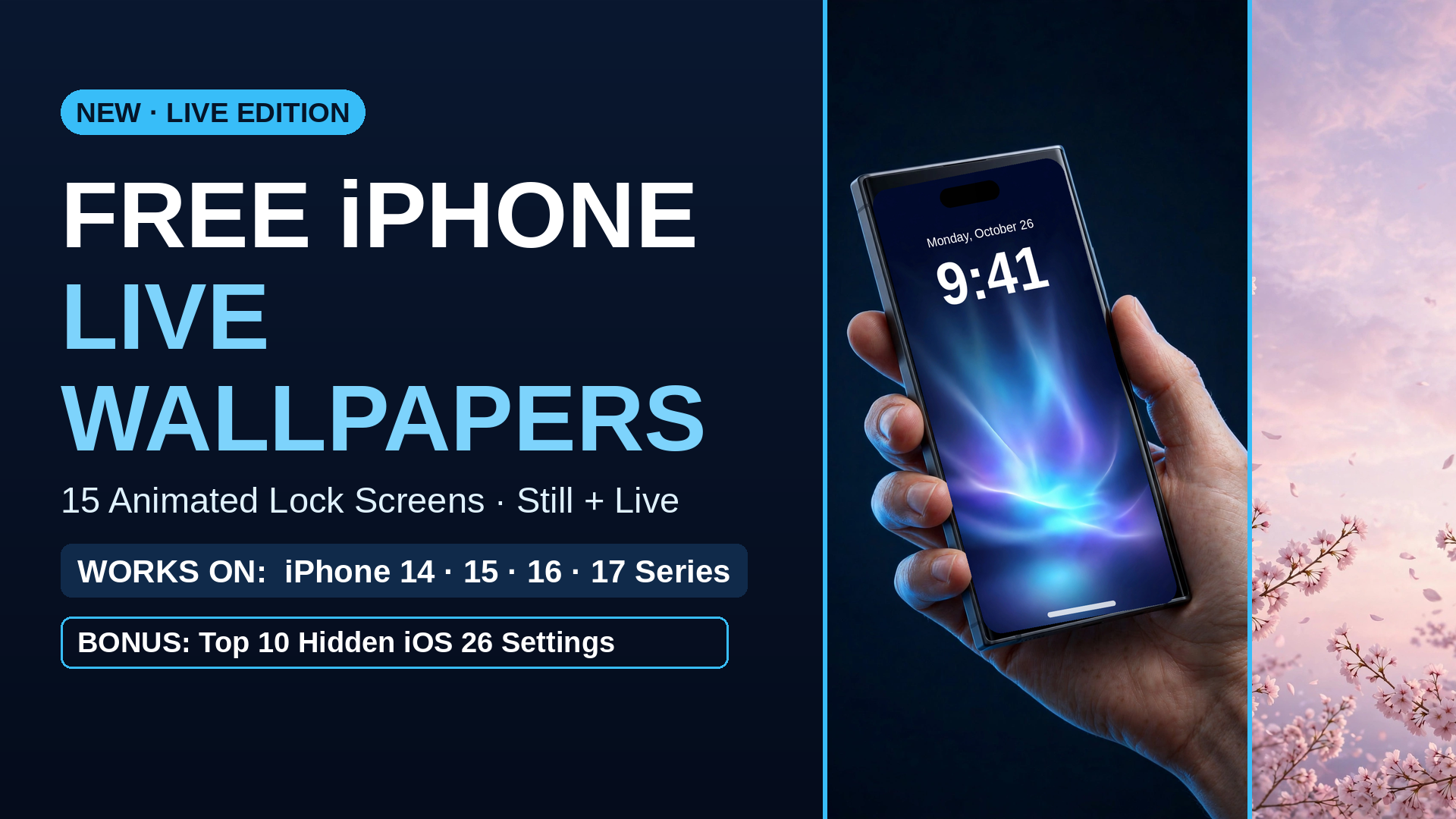
Download the pack or file first, and make sure the live version lands in your Photos library as a Live Photo. In Photos, a Live Photo carries a small LIVE badge in the corner when you open it. If there is no badge, you saved a still or a video file, and no setting will make it move. Our free pack ships proper Live Photos, each with a matching still.
Open the Live Photo in Photos, tap the Share button, and choose Use as Wallpaper. The preview opens with the photo fitted to your screen. Pinch to zoom and drag to position it the way you like; the areas near the clock and the bottom buttons are worth keeping calm so your time stays readable.
On the preview screen, look for the Live Photo button. It needs to be on, not crossed out. If it is off, the wallpaper saves as a still and nothing moves, which is the number one reason people think live wallpapers are broken. Tap it on, then tap Add, and choose Set as Wallpaper Pair if you want the home screen to match, or Customize Home Screen if it should stay simple.
Lock the phone, then wake it. The wallpaper animates as the lock screen appears. It plays on the lock screen; the home screen version stays still by design, which honestly is better for your icons anyway.
That is genuinely all of it. Ninety percent of live wallpaper problems are one of those three, and most of the time it is the second one.
Our free pack has 15 animated lock screens with matching stills, from soft aurora gradients to the Soft Girl collection, plus a short guide and our top 10 hidden iOS 26 settings.
Download the free packOnce your lock screen is alive, the Theme Kit builds the rest of the phone to match: icons, widget covers and wallpapers in four complete looks. And if you are in a settings mood, here are the 9 camera settings worth changing while you are at it.
 iPhone Visuals